Upload a tattoo photo, sketch, or design
Choose a complete, evenly lit image and let the tattoo occupy most of the frame.
TURN EXISTING ART INTO CLEAN LINEWORK
Turn a tattoo photo, sketch, or finished design into a faithful black-and-white stencil reference with adjustable detail and line weight.
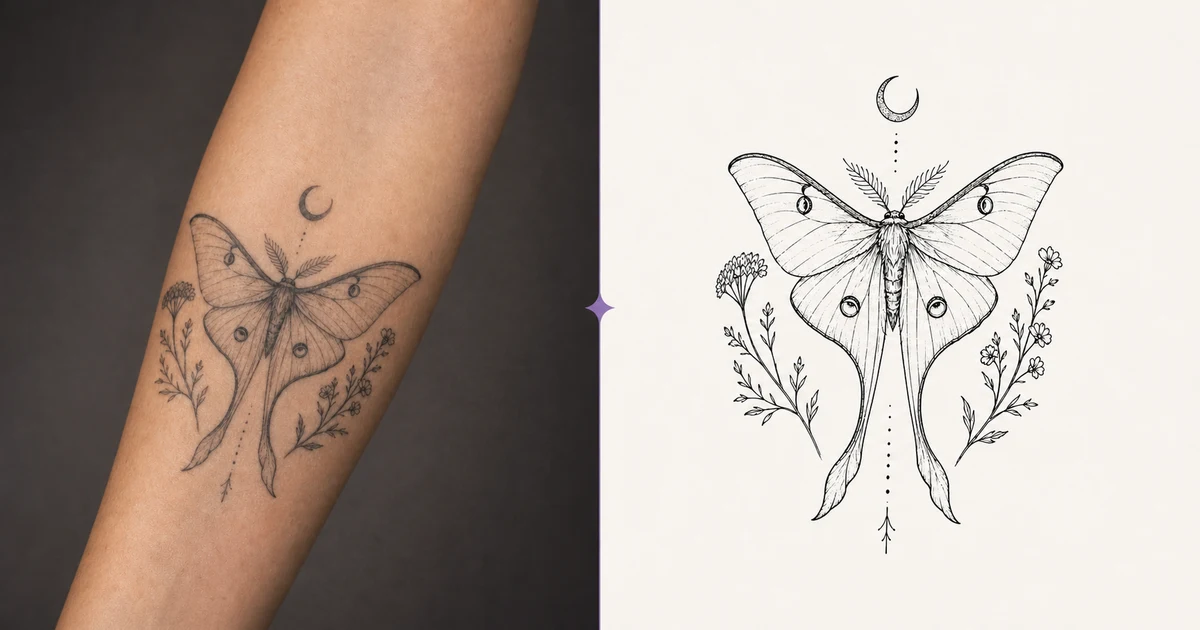
Drag the handle to compare the source image with the extracted black-and-white linework.
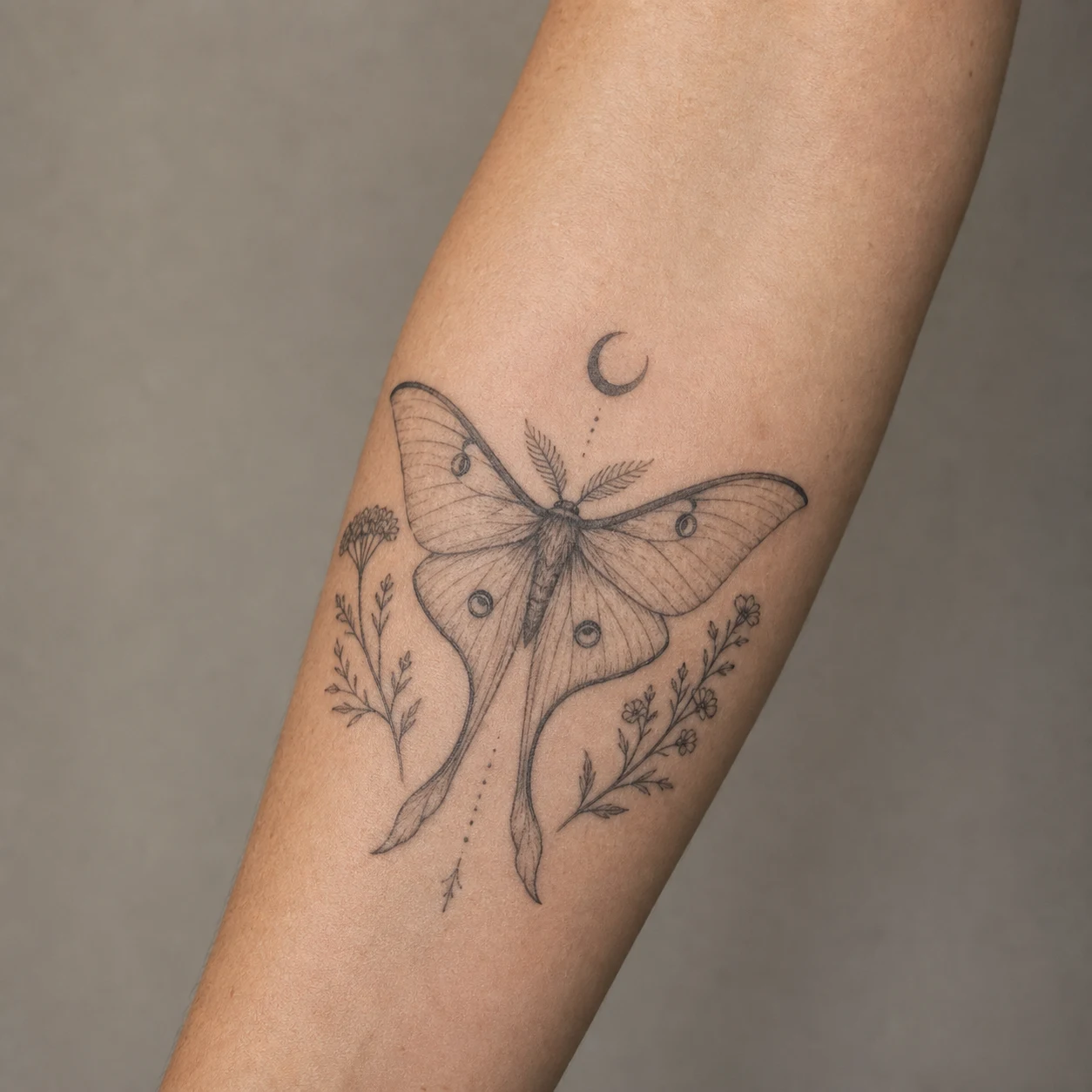
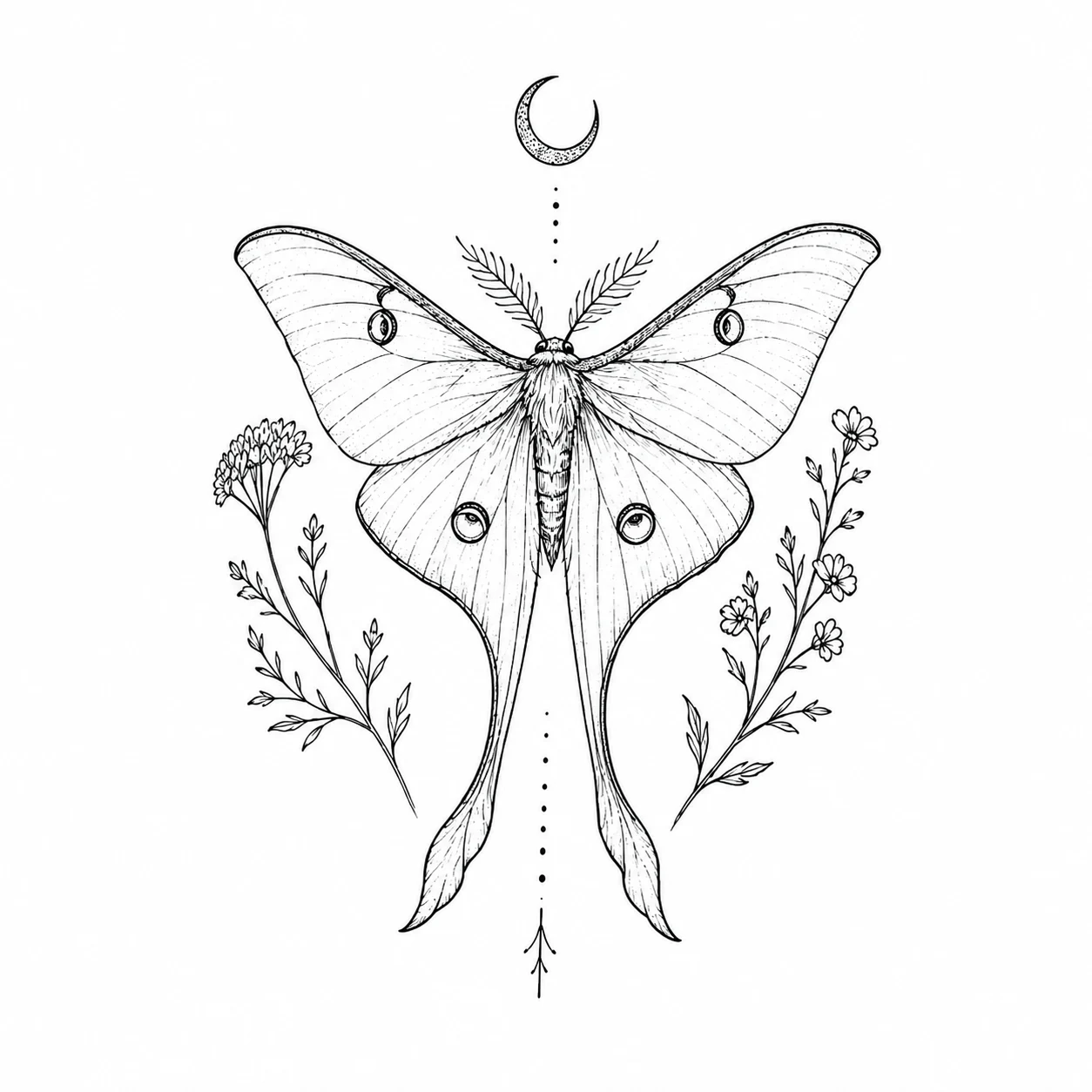
Example disclosure: this source-and-stencil pair is AI-generated demonstration artwork, not a client result. It shows the intended workflow; actual output depends on source-image clarity.
MADE FOR A REAL TATTOO DECISION
This tattoo-to-stencil workflow cleans an existing design into black-and-white linework instead of creating a different tattoo.
Choose a complete, evenly lit image and let the tattoo occupy most of the frame.
Clean Outline works for most images; choose shading guides when the design needs depth cues. Detail, line weight, and canvas stay folded away by default.
Check missing lines and lettering, then have an artist adapt it for actual size, skin, and transfer method.
PHOTO → BLACK-AND-WHITE LINEWORK
A useful conversion removes skin, glare, and photographic background while preserving visible contours, proportions, symbols, and lettering direction.
Both tools can produce black linework, but they solve different jobs. Choosing the right starting point reduces accidental changes to an existing design.
You already have a tattoo photo, sketch, or finished design and want to remove skin and background while extracting inspectable linework.
Make a stencil referenceYou have a subject and style idea and want AI to explore a new tattoo composition.
Generate a new tattooYou have a pet, flower, or keepsake photo and want the subject redesigned as tattoo art instead of traced line by line.
Turn a photo into a tattooMore lines are not always better. A useful stencil balances recognition, spacing, and the size at which it will be transferred.
Protect the silhouette, direction, and focal point before adding interior detail.
Neighboring lines need room so they do not merge during printing or transfer.
Outer contours, construction lines, and shading guides should not all carry equal strength.
Names, dates, spelling, and mirror direction need a human check before printing and tattooing.
AI can remove noise, but it cannot reliably recover design areas hidden by clothing, blown out by glare, or lost to blur.
Crop close to the tattoo while keeping every edge visible.
Prefer even lighting without strong glare or deep shadow.
Photograph sketches flat with dark marks on a light background.
For complex or faded tattoos, start with Balanced detail to limit guessing.
The generated image is a stencil-preparation reference, not an application file already finalized for your body and size.
Your artist can compare them to separate original marks from possible cleanup errors.
Confirm inches or centimeters before transfer-paper printing; scaling changes line weight and spacing.
Mirroring depends on the artwork, lettering, printer, and transfer workflow, so the AI does not choose it automatically.
Direct answers about tattoo stencils, source images, printing, privacy, and professional review.
A tattoo stencil is a simplified line reference used to position a design. Artists commonly print the final linework on transfer paper and transfer key contours to skin.
Upload a clear photo, choose Clean Outline or Outline + Shading Guides, then generate. The tool removes skin, light, and background and matches the canvas to the image orientation; fine-tuning remains available when needed.
Yes. A straight-on, evenly lit, unobstructed photo works best. Curved skin and angled photos can still need manual correction, and AI cannot recover lines that are not visible.
Yes. For artwork that is already clean black linework, conversion mainly helps standardize contrast, simplify detail, and organize line weight; a simple design may not need another pass.
It aims to preserve the composition, but cleanup can simplify fine marks or misread blurred areas. Always compare the stencil against the source image.
You can download it as a printing and editing starting point, but first verify actual size, direction, line weight, and missing details with an artist and the requirements of the transfer printer.
The workflow does not intentionally request mirroring, but AI can still make orientation or lettering mistakes. Compare the result with the source and confirm final mirroring with your artist before printing.
Your browser prepares one normalized WebP or, when WebP encoding is unavailable, PNG. When you generate, that source is sent to our AI provider and stored privately; successful results are stored separately. A saved source is retained for troubleshooting even if generation fails or is canceled; failed-generation credit refunds are unaffected. The original image data is not stored separately, though its filename may be kept as the project label. Delete a completed project to remove its files, or contact support to delete a failed or canceled job’s source.
No. A professional artist still needs to adapt linework and detail for your skin, placement, final size, needle grouping, and long-term aging.